Published on
- 3 min read
Watch your console output when working with AI agents
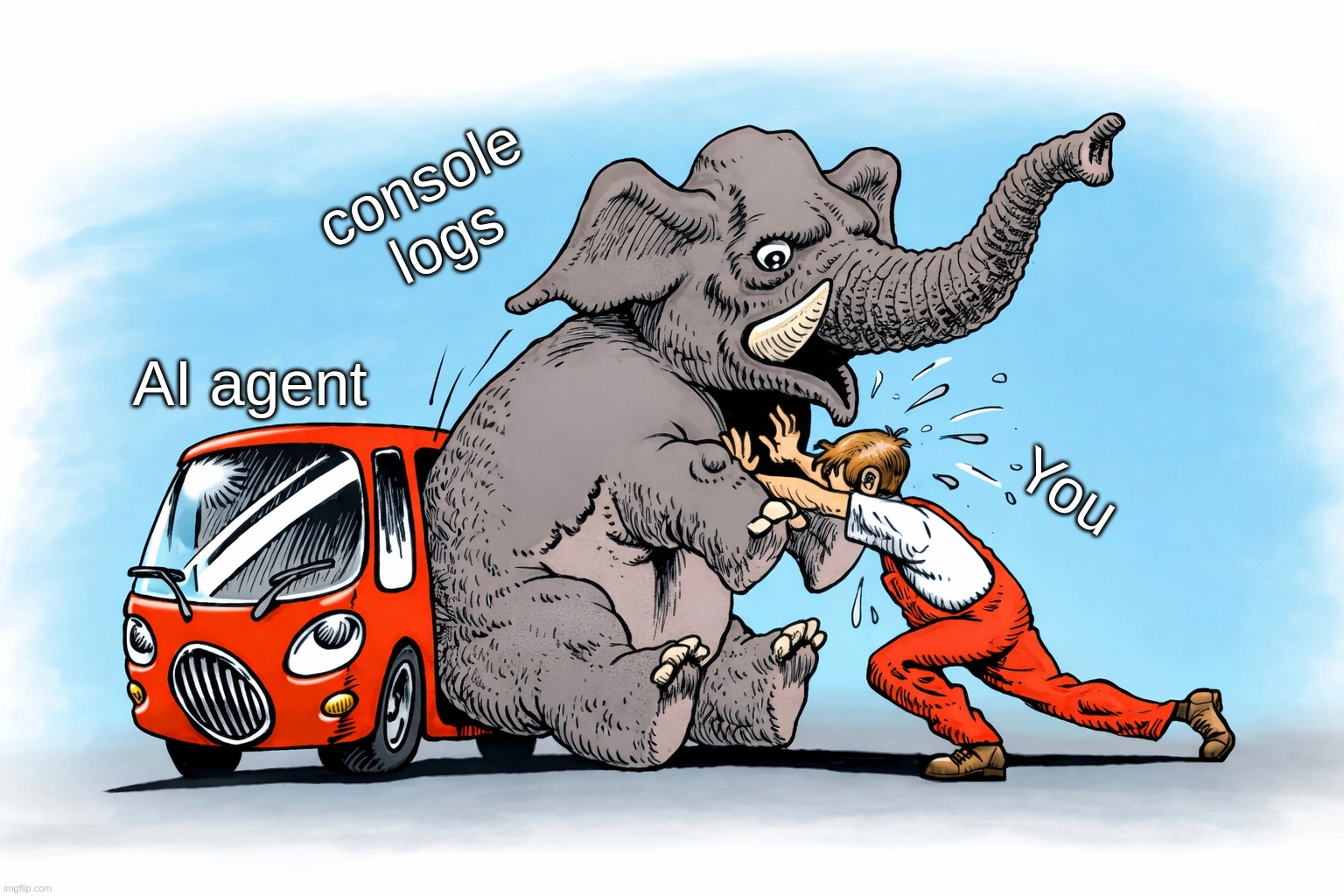
I haven’t seen anybody write about this, but it seems important to me when AI agents run CLI tools for you.
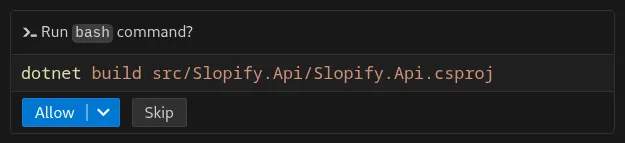
Usually CLI tools produce output to the console. For example, you’ve made changes to a project using an agent and now you ask the agent to execute commands like npm build or dotnet test. Below is an example of how it looks in GitHub Copilot when an agent runs a command.
The commands being run can generate detailed logs, warnings, errors, and other messages. Even if only some of them are relevant (for example, errors that prevent the project from compiling), everything produced by the command gets added to the context. For example:
-
Warnings about old (deprecated) dependencies or linter warnings. They may not affect the current task at all, but they still take up space in the context. Imagine a build log with 500+ lines of warnings, and each one ends up in your agent’s context.
-
ANSI escape codes that set colors in the console or Unicode symbols that make console output nice for us. All this bloats the context without adding any value. Agents don’t care about the color of the text, progress bars, or results shown as ASCII tables.
For example, part of the output from running the dotnet build command is colored in yellow and blue, which brings no benefit to the agent.

Why is it bad for LLM?
LLM performance is not uniform in long contexts. There is a phenomenon called “lost-in-the-middle”. Its essence is that LLM performance gets worse when the important information is placed in the middle of the context. Sometimes this effect is also called “context rot”. There are several articles on this topic, for example “Lost in the Middle: How Language Models Use Long Contexts”.
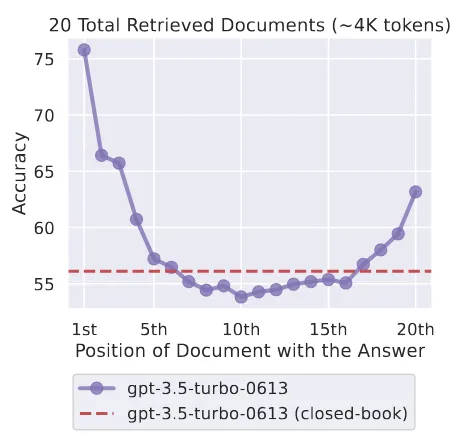
For agents this phenomenon often leads to the following problems:
-
An agent spends time “thinking” about warnings and what to do with them, instead of solving the task.
-
Long console output can push important information out of the context, or the information can get summarized in a way that loses some important details.
-
Summarization can also take from 1 to 2 minutes depending on the model, which slows down the agent’s work even more.
Solution
If you see compiler or linter warnings, ideally you need to fix them. However, this can take a considerable amount of time, especially if you’re working with some legacy project.
Another option is to turn them off. For example, in dotnet you can use the --verbosity quiet flag. In general, I wouldn’t recommend doing this, but sometimes you can if you need to get the job done quickly.
If you’re developing a CLI tool, think about creating a flag that sets the output specifically for agents. For example, Microsoft Dev Proxy developers recently discussed adding a flag like --log-for human|machine for more efficient output for LLMs.
Conclusion
When you work with AI agents, console output stops being just logs. It becomes part of the prompt. Warnings, progress bars, and results shown as tables, ANSI escape symbols take up LLM context. CLI output should be minimal and structured, then the results when working with AI will be more reliable.