Published on
- 4 min read
How to add custom columns to BenchmarkDotNet summaries
BenchmarkDotNet (BDN) can add custom columns, but it’s harder when the value is produced during a benchmark run. This guide shows how to add custom result columns to BenchmarkDotNet summaries using in-process diagnosers and a source generator library.
Why add custom results to summary?
BDN can add custom columns to the summary when using [Params] or [ParamsSource] attributes. This works great when you know the parameters values in advance. In my article about FrozenDictionary performance, I used [ParamsSource] to vary the dictionary size and measure how performance changes:
     | Method           | DictionarySize |            Mean |    Ratio |
| ---------------- | -------------- | --------------: | -------: |
| Dictionary       | 1000000        | 7,345,645.62 ns | baseline |
| FrozenDictionary | 1000000        | 4,712,357.84 ns |     -36% |
But things get complicated when the value you want to show in the summary is produced during the benchmark run. For example, you benchmark a SQL query and want to display the query plan or key metrics from it next to the timing results.
Why is it hard to show benchmark-produced results?
By default, BDN runs benchmarks in a separate process. This is a feature: process-level isolation makes measurements more accurate, because it reduces the influence from the host process.
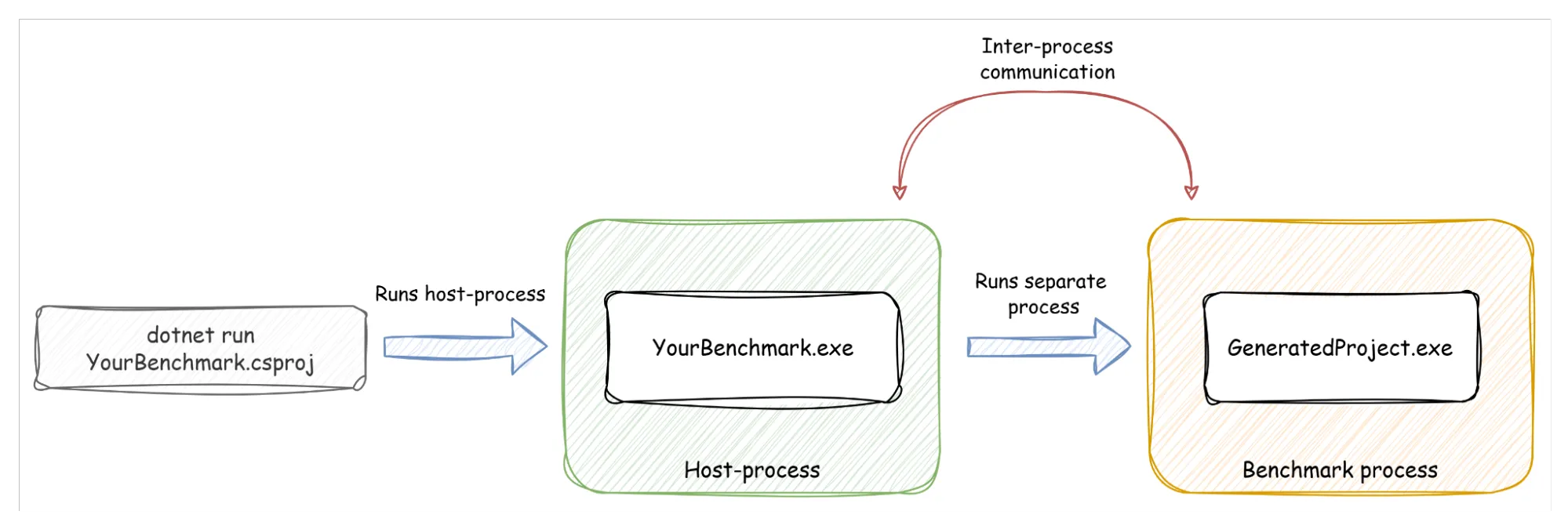
The downside is that benchmark results are created inside the benchmark process, while summary tables are built in the host process. Passing custom data back is not trivial. It’s a known limitation that exists since 2018. Fortunately, in-process diagnosers were added to BenchmarkDotNet v0.16.
How in-process diagnosers can help
When an IInProcessDiagnoser is paired with IInProcessDiagnoserHandler, you can send arbitrary data from the benchmark process to the host. Then you can display it via custom IColumn implementations in the summary.
The manual approach looks like this:
- implement
IInProcessDiagnoser; - implement
IInProcessDiagnoserHandler; - implement one or more
IColumninstances for each column that you want to see in the summary; - create manual config and add your columns;
- register config so BDN uses it.
That’s a lot of boilerplate, so I created a source generator library that generates it automatically.
I shared this package in the original BDN issue because ideally IMO this should become a feature in BDN. Until then, this library can be used to reduce boilerplate. If/when BDN adds an official solution, I plan to deprecate this package in favor of the built-in feature.
How to use the source generators library
The library relies on BDN functionality that is available only in nightly builds, so you need to add the BDN nightly feed to the NuGet sources.
Add BDN nightly feed
Create a nuget.config file in your solution root with this content:
     <?xml version="1.0" encoding="utf-8"?>
<configuration>
    <packageSources>
        <!-- Official NuGet feed -->
        <add key="nuget.org" value="https://api.nuget.org/v3/index.json" protocolVersion="3" />
        <!-- BenchmarkDotNet nightly feed -->
        <add key="bdn-nightly" value="https://www.myget.org/F/benchmarkdotnet/api/v3/index.json" />
    </packageSources>
</configuration>
Install packages
Add BDN nightly package and source generator package to your benchmark project:
     # Add nightly BDN package
dotnet add package BenchmarkDotNet --version 0.16.0-nightly.20260105.397
# Add source generators library
dotnet add package AlekseiFedorov.BenchmarkDotNet.ReportColumns
Annotate properties
Make your benchmark class partial and mark any properties you want to appear as report columns with [ReportColumn]:
     public partial class MyBenchmark
{
    [ReportColumn]
    public int MyAwesomeColumn { get; set; }

    [Benchmark]
    public async Task BenchmarkMethod()
    {
        MyAwesomeColumn = Random.Shared.Next(1, 100);
        await Task.Delay(1000);
    }
}
By default, the generator will create a column with the property name as the header and will use the last observed value as the column value.
     | Method          |    Mean |    Error |   StdDev | MyAwesomeColumn |
| --------------- | ------: | -------: | -------: | --------------- |
| BenchmarkMethod | 1.000 s | 0.0001 s | 0.0001 s | 77              |
Check generated files
If you want to see the files generated by the library, add the following lines to your benchmark .csproj file:
     <EmitCompilerGeneratedFiles>true</EmitCompilerGeneratedFiles>
<CompilerGeneratedFilesOutputPath>$(BaseIntermediateOutputPath)Generated</CompilerGeneratedFilesOutputPath>
After the build, go to the specified folder. You should see files similar to these:
     public sealed class MyBenchmark_MyAwesomeColumn_Column : IColumn
{
    // Column code
}

public sealed class MyBenchmark_InProcessDiagnoser : IInProcessDiagnoser
{
    // In-process diagnoser code
}

public sealed class MyBenchmark_InProcessDiagnoserHandler : IInProcessDiagnoserHandler
{
    // In-process diagnoser handler code
}

public sealed class MyBenchmark_ManualConfig : ManualConfig
{
    public MyBenchmark_ManualConfig()
    {
        AddDiagnoser(new MyBenchmark_InProcessDiagnoser());
        AddColumn(new MyBenchmark_MyAwesomeColumn_Column());
    }
}

internal static class MyBenchmark_Results
{
    // Class for holding benchmark results
}

namespace Demo
{
    [Config(typeof(MyBenchmark_ManualConfig))]
    public partial class MyBenchmark
    {
    }
}
Conclusion
IInProcessDiagnoser lets you send arbitrary data from the benchmark process to the host process and display it in the summary using IColumn. However, the manual setup requires a lot of work. The NuGet package AlekseiFedorov.BenchmarkDotNet.ReportColumns reduces the boilerplate, so you can focus on benchmarking.